
Send Prices: Email for price sent by a person (Holosun)
Holosun's MAP policy does not allow a price email that goes out on its own. Every quote has to be sent by a person. For Holosun, and any other brand you set the same way, Email for price works like this.
What the shopper sees
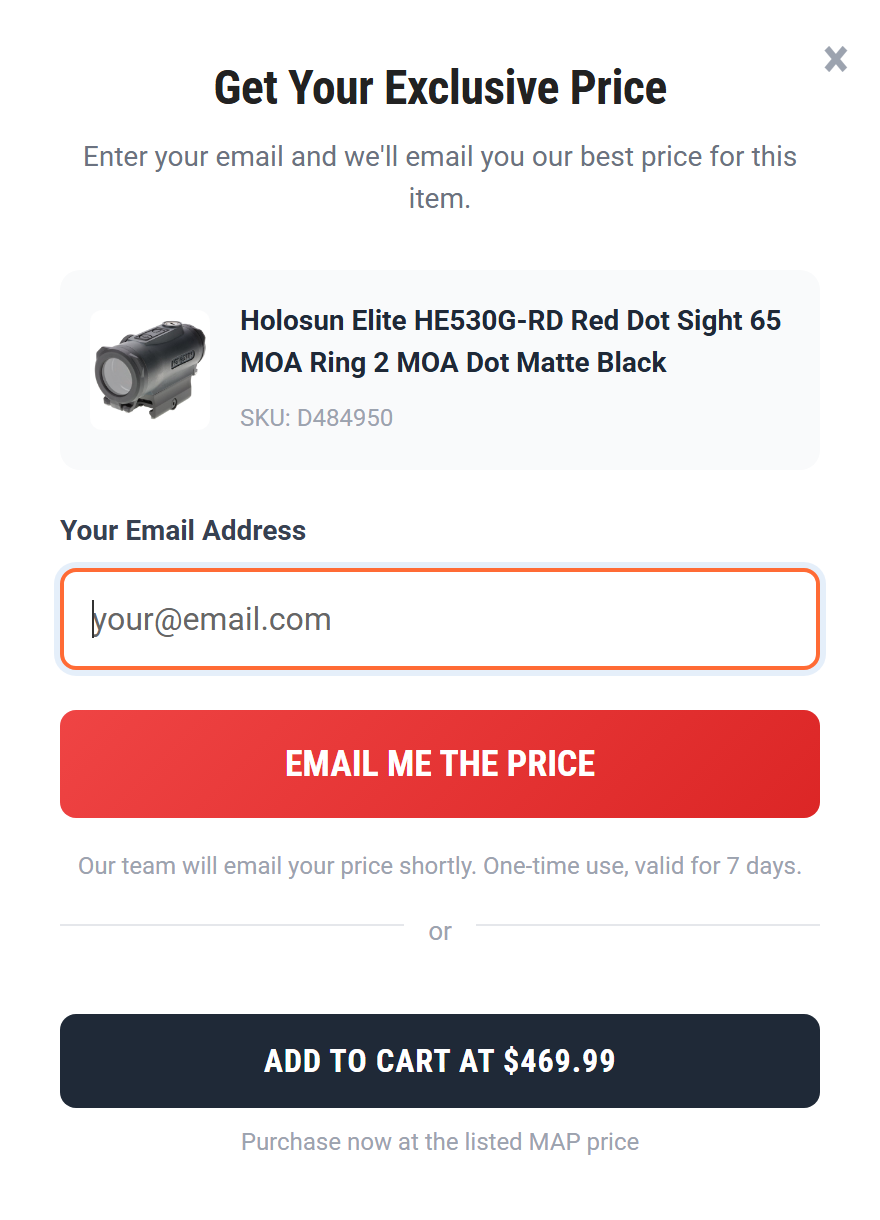
The product page still shows Email for price. The shopper enters their email and is told your team will email the price shortly. Nothing is emailed to them yet.
What you see
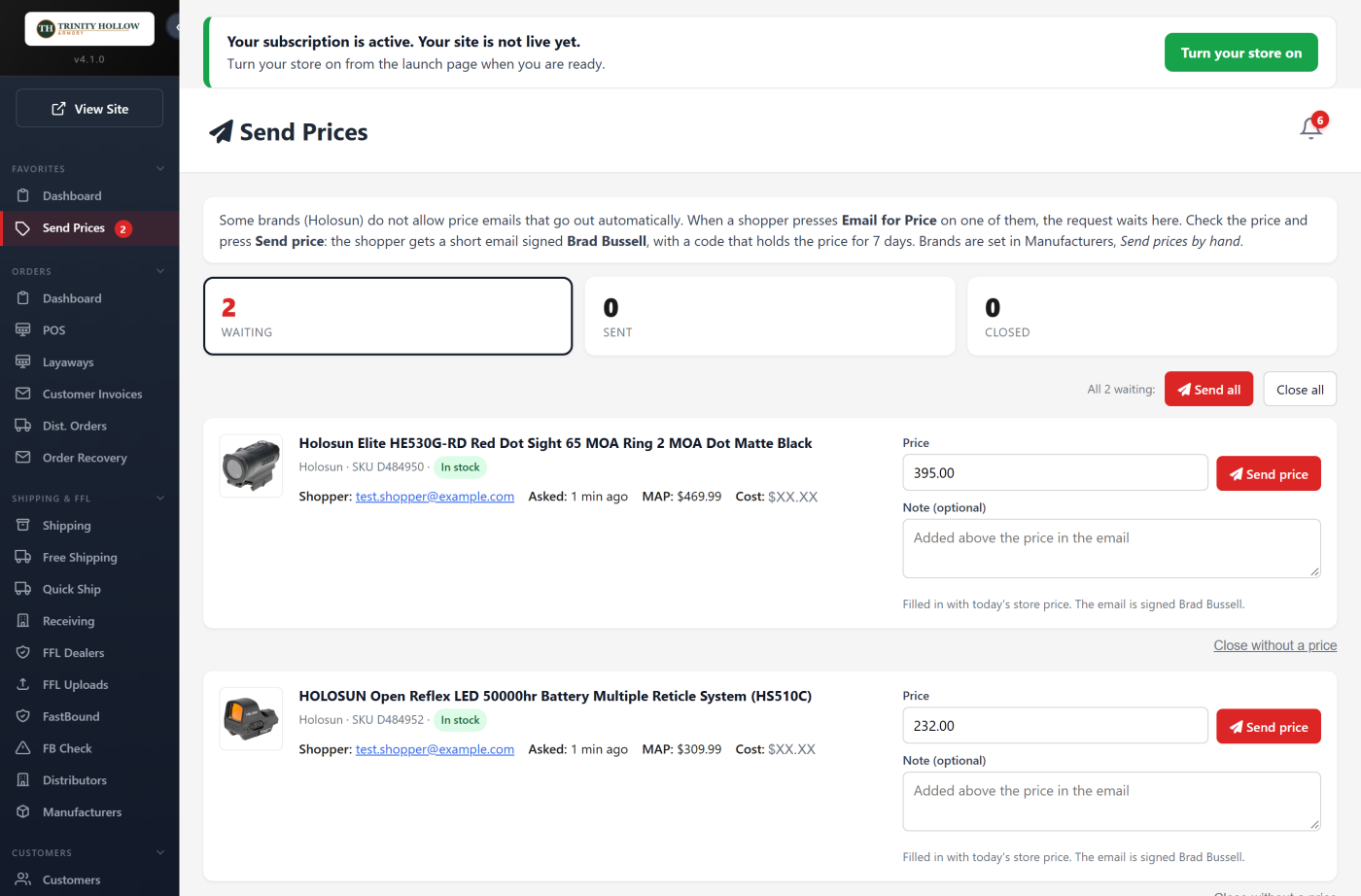
You get an email titled [Price request], and the request waits under Send Prices, right below Dashboard at the top of your menu. The red number is how many are waiting.
Send a price
- Open Send Prices.
- Check the Price. It is filled in with today's store price, and the MAP and your cost are shown beside the product. Change it if you want to.
- Add a Note if you like. It appears above the price in the email.
- Click Send price.
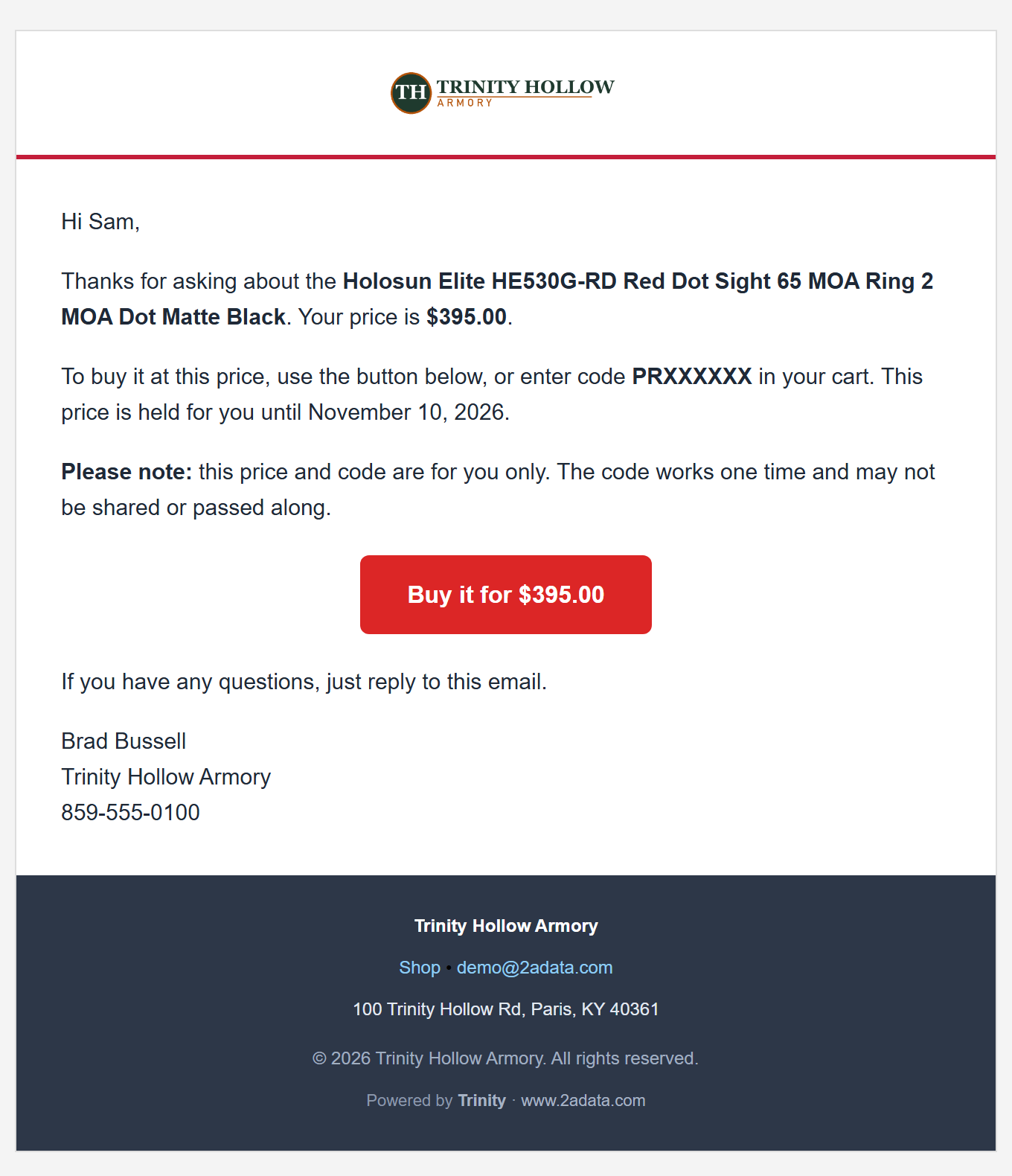
The shopper gets a short email signed with your name, with a code that works one time and holds the price for 7 days, and the reminder Holosun requires: the price and code are for them only and may not be shared.
Important: Send price will not send a price below your cost, or a request that someone else already sent or closed.
Several at once
Send all sends every waiting request at the price in its own box, each with the same checks. Close all closes them all without sending anything. Close without a price closes one request, for example a duplicate or an email address that is clearly fake.
The Sent and Closed tabs keep the record: what price went out, who sent or closed it, and when.
Which brands work this way
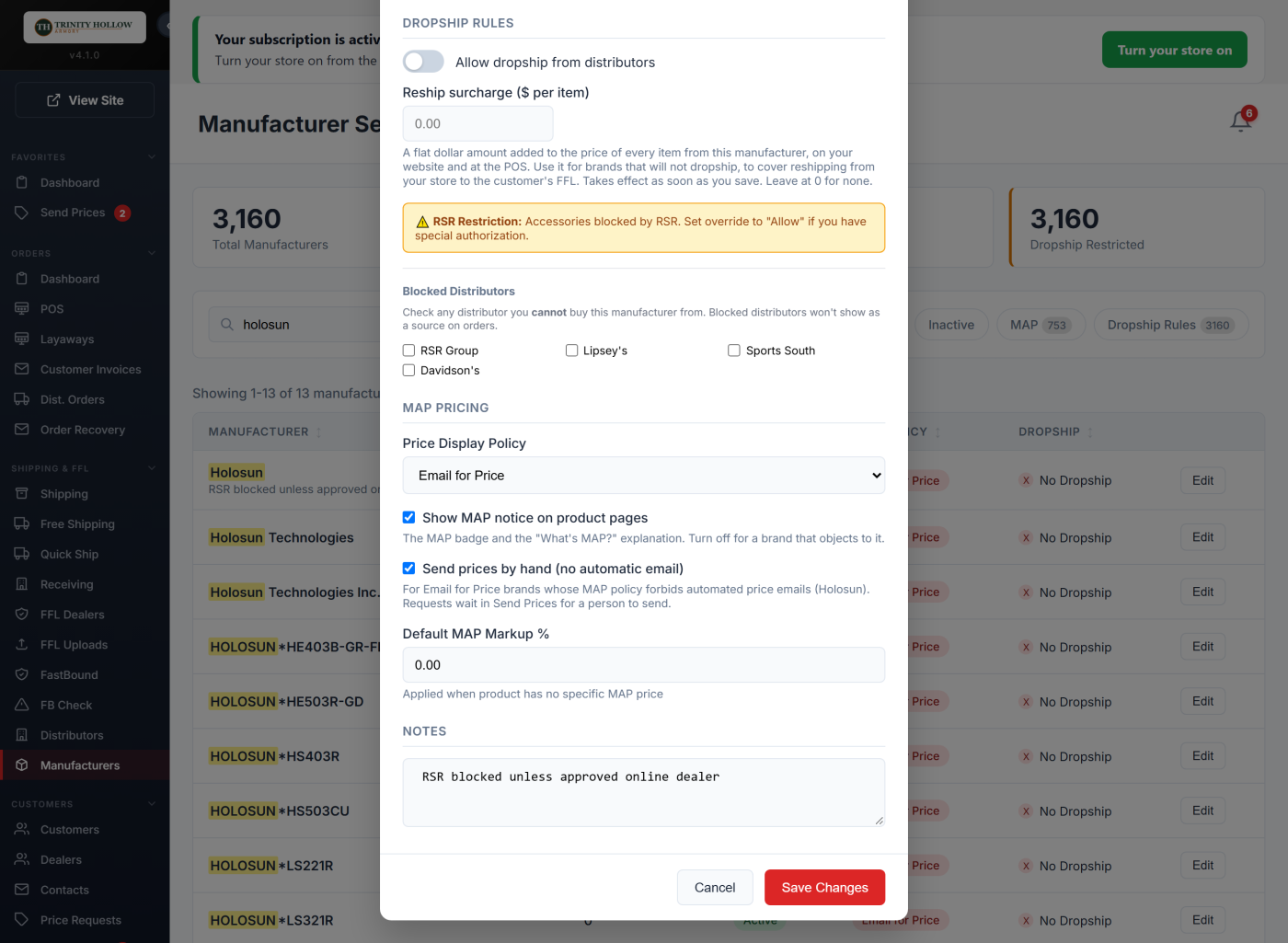
Holosun is set this way on every store. To set another brand, open Manufacturers, click Edit on the brand, choose Email for Price under Price Display Policy, check Send prices by hand (no automatic email) and click Save Changes.
Make an Offer is turned off for these brands, on your website and on your GunBroker listings, because an offer would answer the shopper with a price automatically.
More help
Still stuck? Email support@2adata.com and tell us which article you were reading.
Comments
No comments yet. Questions and tips from other store owners are welcome.
Leave a comment