
Take a trade in at the register
A customer can trade a gun in toward what they are buying. The trade value comes off the sale before tax. The traded gun is received into your stock and logged in your bound book when the sale is completed.
Take the trade
- Open the register (New Sale on the POS home) and ring up what they are buying.
- Click the green
TRADE-INbutton. TheTake a trade-inwindow opens. - Scan or type the gun's UPC and click Find. If the gun is in your catalog, the description, make, model, caliber and type fill in for you. Check them. No UPC on the gun? Click Make a store UPC, or leave it blank. New SKU shows the SKU the traded gun will get.
- Fill in What is it and What we are paying (trade value). Enter the Sale price (goes online) now too, so the gun lists at the right price as soon as it is released. You can change it later on its product page.
- Tap the Condition: Used, New, Refurbished or Open box. A Condition rating from 1 to 10 is optional.
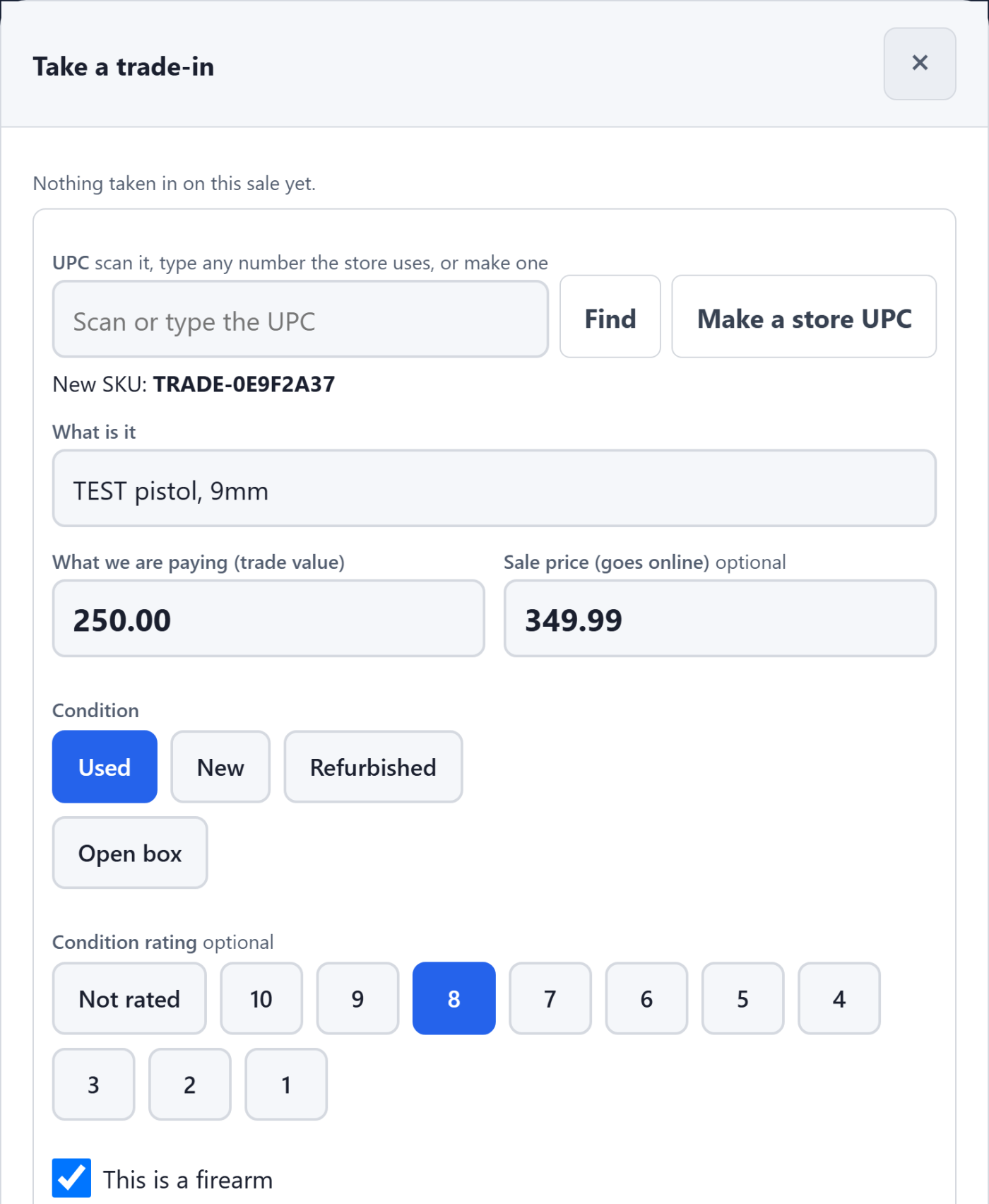
- For a gun, leave This is a firearm checked and fill in what the bound book needs: Make (manufacturer), Model, Type, Caliber or gauge and Serial number. Type is the list of approved bound book types.
- Under Who it came from (from their driver's license), copy their First name, Last name, Street address, City, State, ZIP and ID number from their license. Phone is optional, and ID type starts as Driver's license. This is the person the book names, whoever the sale is for.
- Click
Add this trade-in. The gun is listed at the top of the window with its value and SKU. Trading in more than one gun? Fill in the next one and add it too. Each gets its own SKU and its own book line. - Click Done.
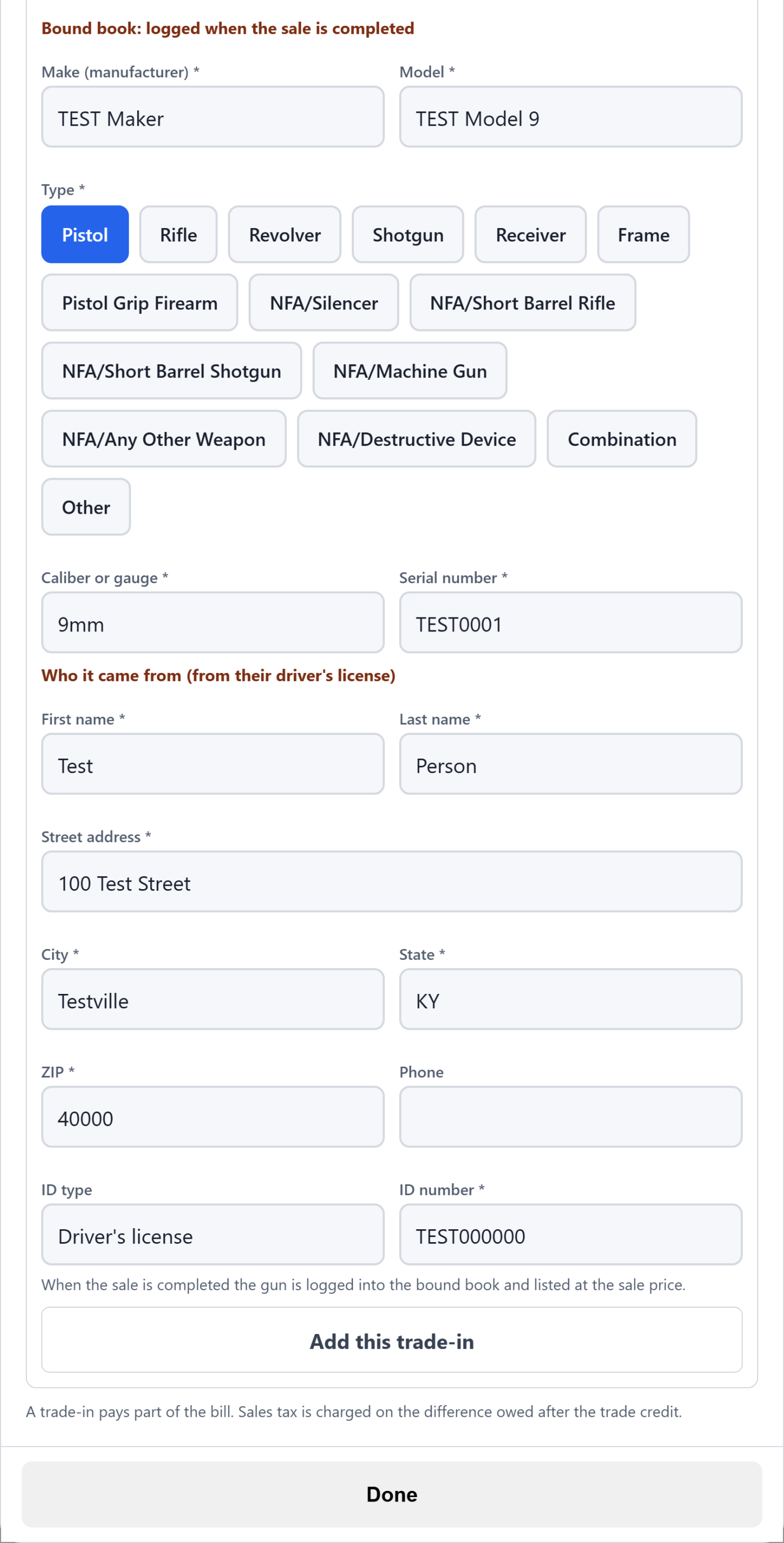
If anything the bound book needs is empty, the register says which boxes and does not add the trade. For something that is not a gun, such as a scope, uncheck This is a firearm. It then needs only What is it and the trade value.
What the sale looks like
The cart shows Less trade-in under the Subtotal, then the Difference. Sales tax is charged on the Difference, not on the full price. The TOTAL is what the customer pays now, by CARD, CASH or STORE CREDIT.
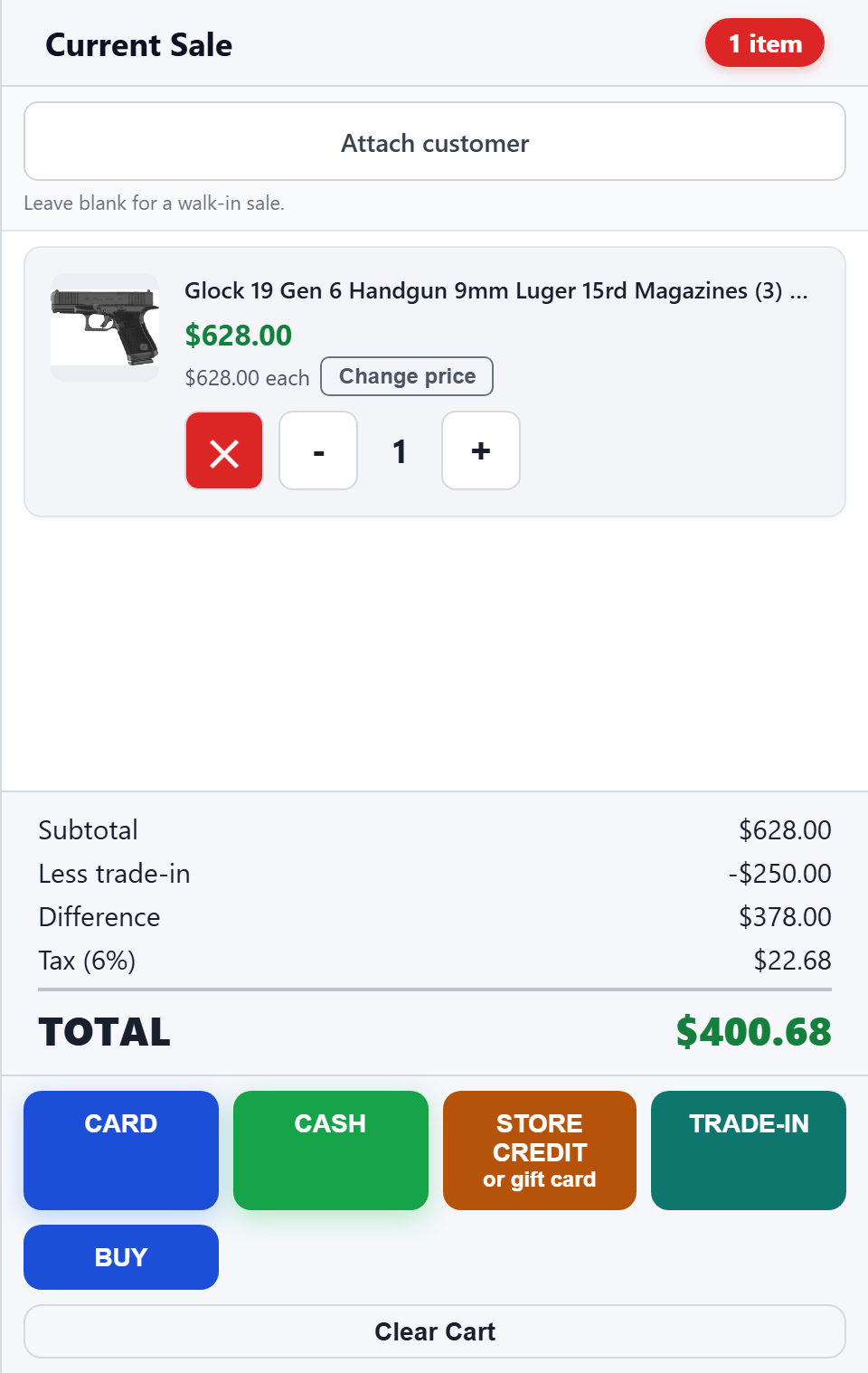
- To take a trade back off, open the window again and click Remove on its row. Clear Cart removes the trades too.
- If the trade is worth more than the goods, the TOTAL shows OVER BY and the sale cannot be paid. Lower the trade value, or buy the gun outright with BUY instead.
- The customer pays the rest the same day. LAYAWAY is turned off while a trade is on the sale, so a trade cannot be held against a balance paid later.
- The receipt shows
Less trade-in, Difference and the tax on the difference.
When the sale is completed
Nothing is saved until the sale goes through. Then, for each traded gun:
- It becomes its own used listing with its own SKU, at the sale price you entered. Its cost is the trade value. A maker's UPC is kept for reference only, so the new gun's price and stock never touch it. A store UPC goes on the listing so it scans at the register.
- Its acquisition is logged as a purchase from the person, at the trade value: in FastBound if your store uses FastBound, and in Trinity Bound Book if your store uses it.
- It stays off the shelf, so it cannot be sold, until its entry is in the book. It goes on sale by itself as soon as FastBound accepts it. On a store with Trinity Bound Book and no FastBound, it goes on sale when its line commits, which happens on the spot when automatic commit is on.
- The register then shows a message for each traded gun saying whether it is in the bound book. A trade that is not a firearm goes on sale right away.
- The person is saved, so they are in the Person list the next time you take something in from them.
A gun held for the bound book
Open Trade-ins (left menu, under Tools; the number beside it is how many guns are held). Held off the shelf counts them, and Waiting on the bound book lists each one as Off the shelf. Fix the problem the register named, or make the entry in your book. When you have checked that the entry is in your book, click Logged — release it on its row and confirm. That puts the gun on sale. It does not write the book for you.
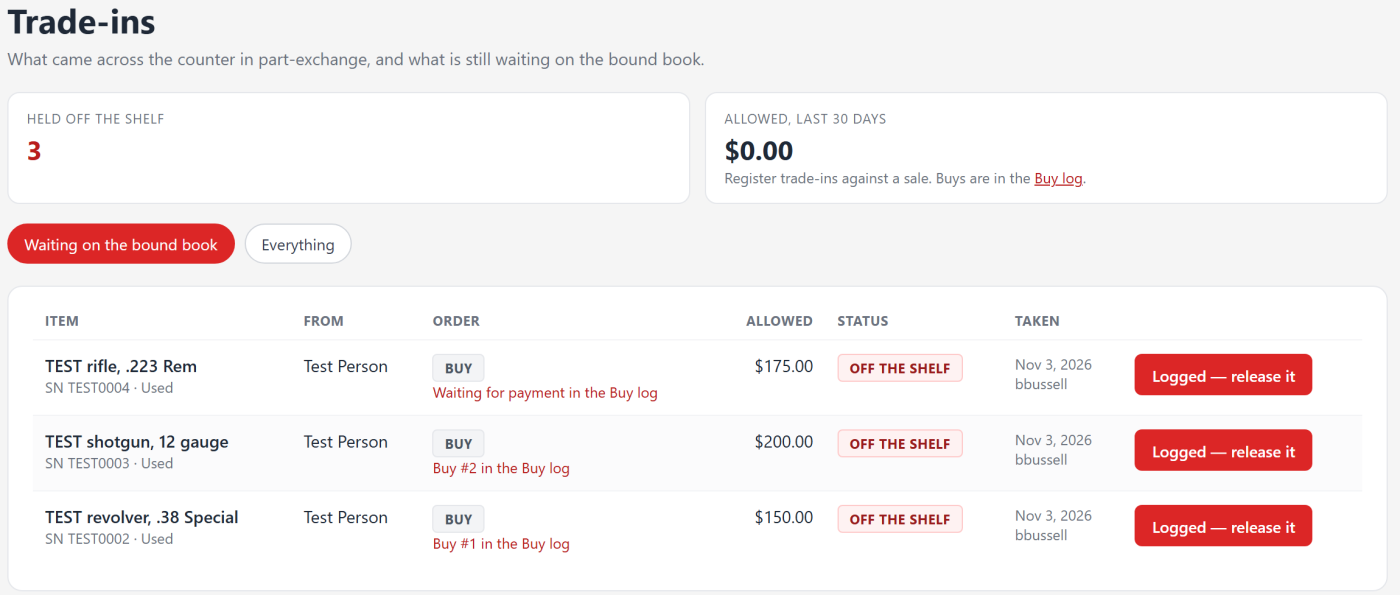
The same list shows guns bought with BUY, marked Buy, with a link to the Buy Log. Allowed, last 30 days counts only trades taken against a sale. Everything shows every trade, released or not.
On the order page
The sale's order has an Incoming trade items box: each item, its type and caliber, serial, condition, the Value given (down payment), and its Bound book status. That status is the line number once it is committed, In the book, waiting to be committed, or NOT in the bound book yet.
The totals read in the order the math is done: Trade-in credit (down payment), Taxed amount (after the trade), then Tax with its rate. An order with a trade credit that is not paid in full shows a PART PAID banner with the balance due. A sale rung at the register is always paid in full.
Still stuck? Email support@2adata.com and tell us which article you were reading.
Comments
No comments yet. Questions and tips from other store owners are welcome.
Leave a comment