
Take a gun in on consignment
On consignment the owner keeps the gun until it sells. You sell it for them and pay them the sale price less your fee. Take In an Item is now for consignment only. To buy a gun outright, use BUY on the register (see Buy a gun outright at the register). To take a gun in toward a sale, use TRADE-IN on the register (see Take a trade in at the register).
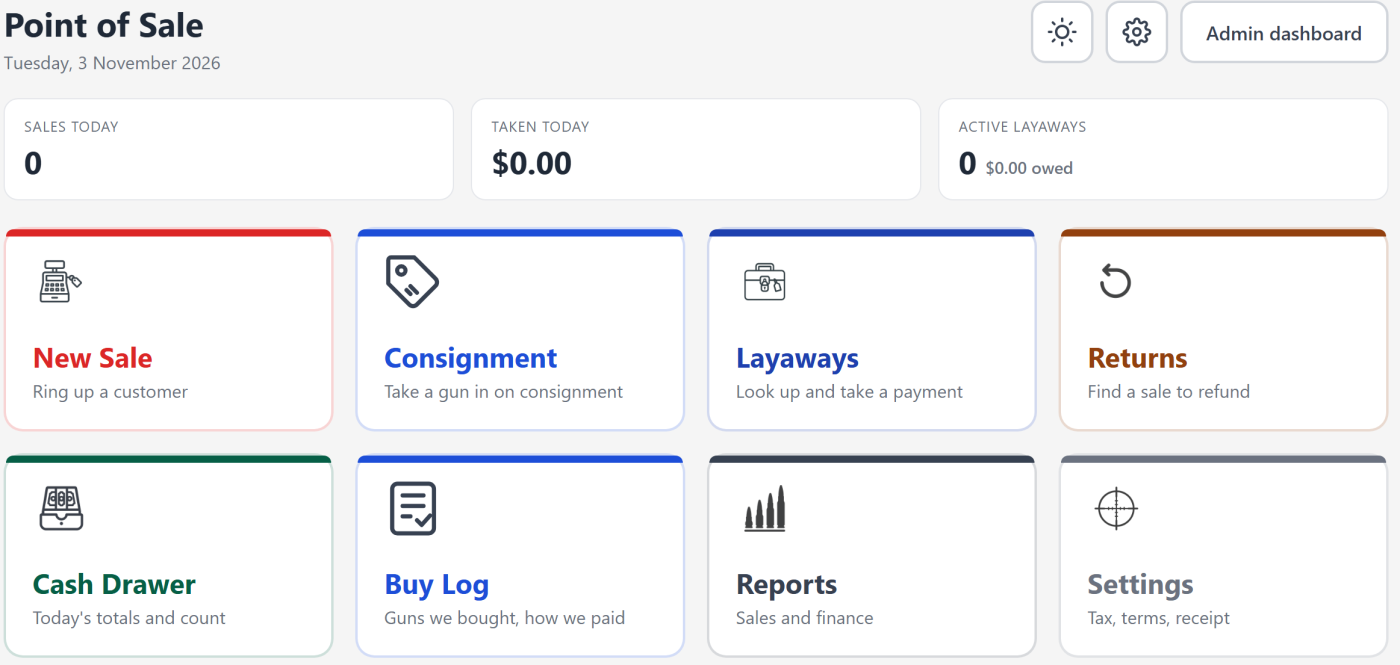
Open it with the Consignment tile on the POS home, or Take In an Item in the left menu under Tools.
1. Who is it coming from
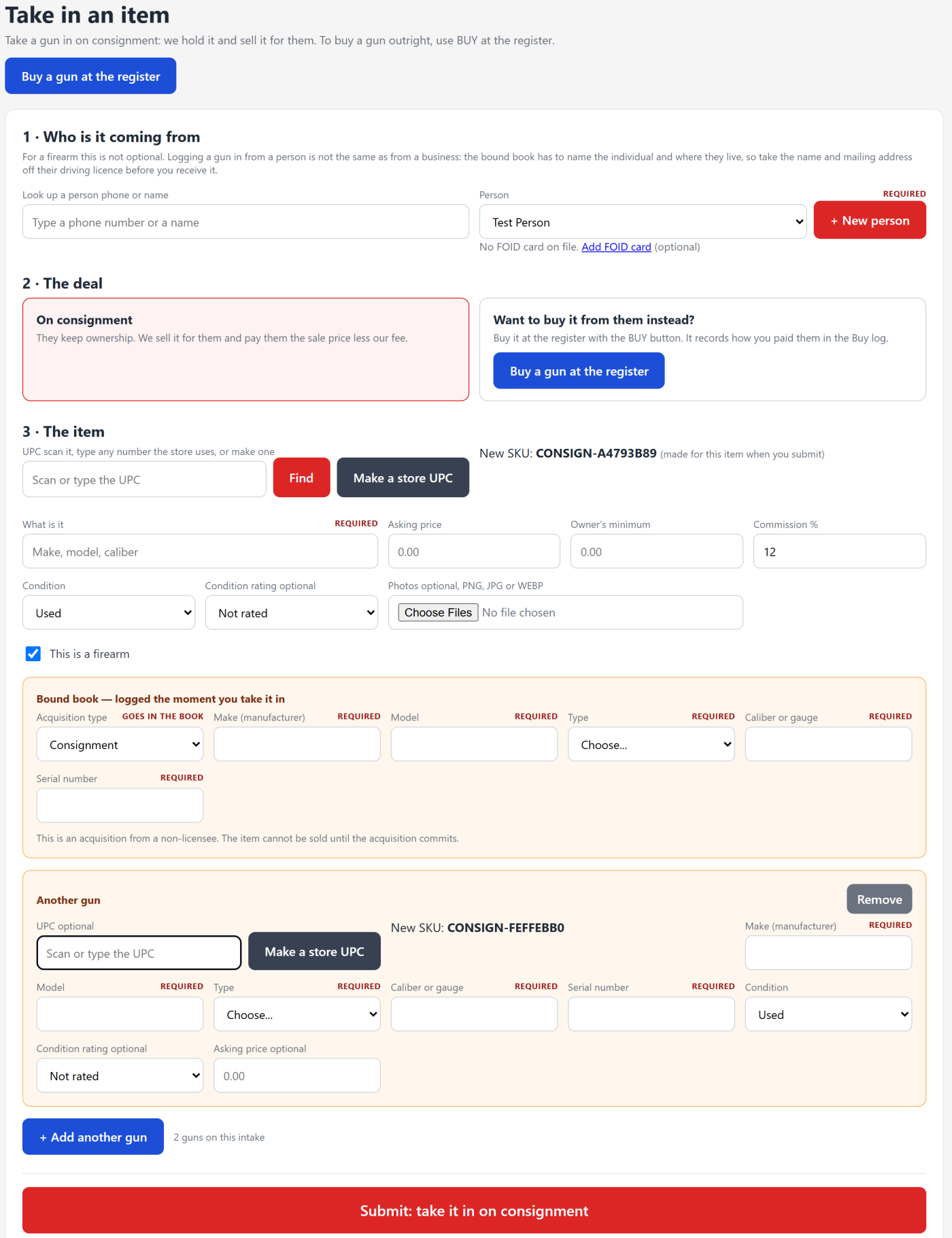
- Type a phone number or a name in Look up a person. The Person list narrows as you type, and a single match is chosen for you.
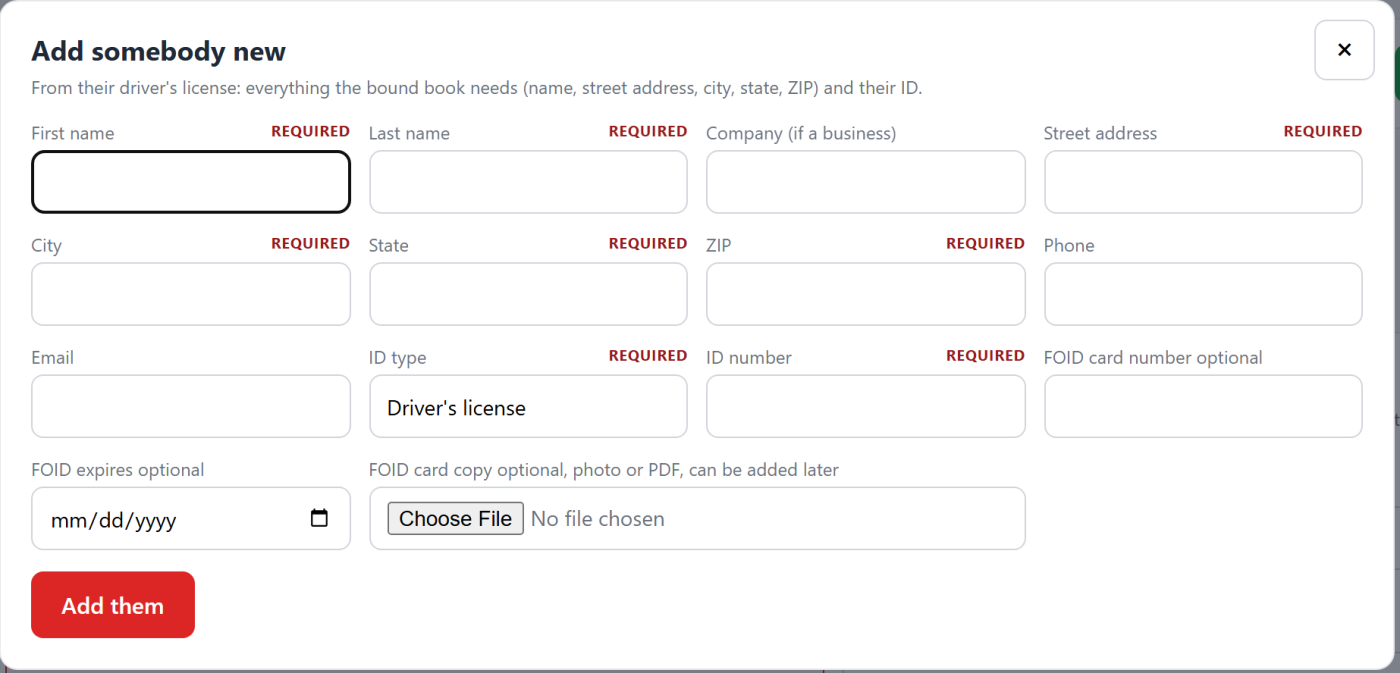
- Someone new? Click + New person. In Add somebody new, copy everything from their driver's license: First name, Last name, Street address, City, State, ZIP, ID type and ID number are required. Company (if a business), Phone and Email are optional. Click Add them and they are chosen for you.
- A FOID card is optional. Add the FOID card number, FOID expires and a FOID card copy (photo or PDF) when you add the person, or later: under the Person list, click Add FOID card, then Save FOID card. Once one is on file it says FOID card on file, with view and replace.
- A person marked details missing cannot hand you a firearm until their name, address and ID are complete. The page warns you as soon as you pick them.
2. The item
- Scan or type the UPC and click Find to fill the item from your catalog, with its catalog photo. Any number your store uses is accepted. No UPC? Click Make a store UPC: it makes a 12 digit store UPC that goes on the item so it scans at the register. New SKU shows the SKU the item will get.
- Fill in What is it, the Asking price, the Owner's minimum and the Commission %. Commission starts at your house rate, which you set at the top of Consignments.
- Choose the Condition. A Condition rating from 1 to 10 is optional. Add Photos if you like (PNG, JPG or WEBP).
- For a gun, leave This is a firearm checked and fill in the bound book box: Acquisition type (it starts on Consignment), Make (manufacturer), Model, Type, Caliber or gauge and Serial number.
- More than one gun from the same person? Click + Add another gun for each one. Every gun gets its own UPC, SKU, serial, condition and asking price. Remove takes one off.
- Click Submit: take it in on consignment.
Every gun is checked before anything is saved. If one is missing something, nothing is saved and the message says which gun.
The bound book
When you submit, each consigned firearm's acquisition is logged as a consignment, with no cost, because the shop does not own it: in FastBound if your store uses FastBound, and in Trinity Bound Book if your store uses it. The gun cannot be sold until its entry is in the book.
- With FastBound, it goes on sale as soon as FastBound accepts it.
- On a store with Trinity Bound Book and no FastBound, it goes on sale when its line commits, which happens on the spot when automatic commit is on. If the line is saved as pending instead, commit it in the bound book, then click Post to bound book on its row on Consignments to put it on sale.
If the entry does not go in, the page says why, and the item shows Not in the book on Consignments with the reason. Fix the problem, then click Post to bound book on its row.
After it is in
Taken in recently at the bottom of the page lists the latest intakes and whether each is in the book. When the gun sells, find it on Consignments, enter what it sold for and click Sold. The page shows what the owner is owed. Click Paid when you pay them, or Return if they take it back. Sheet opens the intake sheet to print.
Still stuck? Email support@2adata.com and tell us which article you were reading.
Comments
No comments yet. Questions and tips from other store owners are welcome.
Leave a comment